I want to be honest with you.
There are many AI slop open source projects right now that were vibe coded over a weekend and made their way into your organizations while bringing bugs, vulnerabilities and performance problems along with them.
I would love to be one of those... But I cannot.
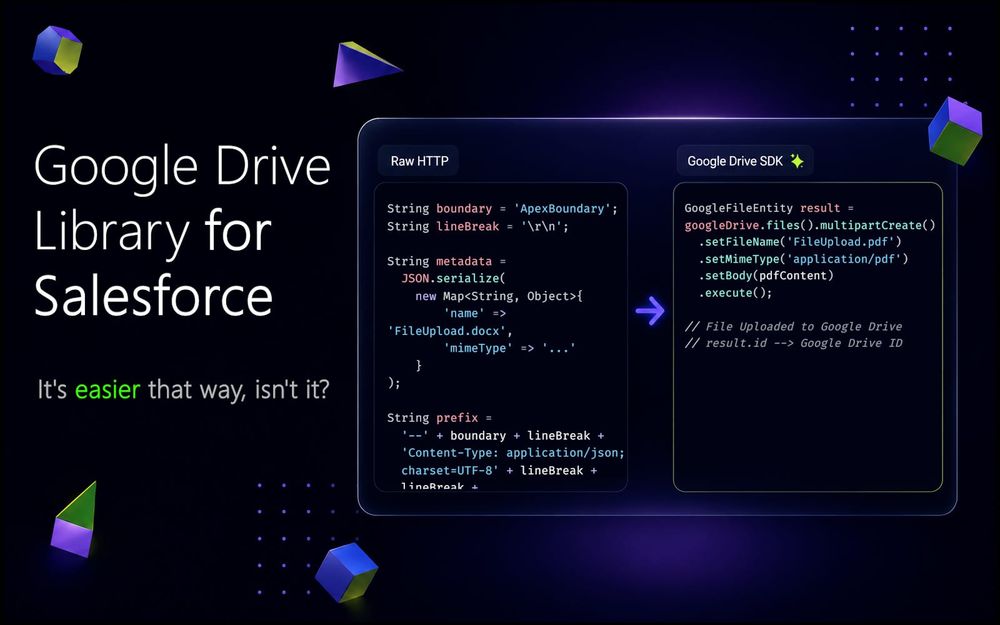
My name is Google Drive Library for Apex. I am an open source SDK that provides you with a simplified way to work with Google Drive API directly from Apex without leaving Salesforce at all.
You tell me what you want to do and I translate it into something Google Drive understands. And with the latest release I can do much more than before.
My maintainer treats me well. He feeds me, updates me and verifies changes against real enterprise and personal Google accounts for which he pays from his own pocket.
You can find me here: https://github.com/sandriiy/salesforce-google-drive-library
You can find release notes here: https://github.com/sandriiy/salesforce-google-drive-library/releases/tag/v1.3.0
Apex Symbol API
With Winter ’27 Salesforce is opening up much more information about the Apex code available in your organization to development tools and AI Agents.
The Apex Symbol API allows those tools to retrieve structured information about Apex types such as classes, interfaces, methods, parameters, return types, modifiers, annotations and documentation.
Which is why I now have better method names, clearer signatures and ApexDoc all over the place.
/**
 * Provides access to file revision operations.
 *
 * @return Revision factory associated with this Google Drive instance.
 */
public GoogleRevisionFileFactory revisions() {
    return new GoogleRevisionFileFactory(this);
}
This means you can spend less time explaining your dependencies and more time asking the Agent to actually solve the problem.
File Versions and Revision History
One of the most familiar capabilities in Google Drive is the ability to keep previous versions of a file.
You change something and Google Drive keeps the previous content so that you can see what existed before. This is particularly useful when Salesforce is responsible for generating or managing documents such as contracts, invoices, reports, statements or anything else that can change during its lifetime.
Which is why, you can simply upload new content into the existing file.
GoogleFileEntity newVersion = remoteGoogleDrive.files()
    .modify()
    .simpleUpdate(remoteFileId)
    .setContentType('text/plain')
    .setBody(Blob.valueOf('The new content of the file'))
    .setKeepRevisionForever(true)
    .setSupportsAllDrives(true)
    .execute();
The library also supports multipartUpdate() and resumableUpdate() depending on how the new content needs to be uploaded.
The important part is that the existing Google Drive file remains the same. Google Drive keeps the previous content as another revision and you can now work with those revisions directly from Apex.
For example, you can retrieve the history of a file:
GoogleRevisionSearchResult result = remoteGoogleDrive.revisions()
    .search(fileId)
    .setMaxResult(100)
    .setFields('revisions(id,modifiedTime,size,keepForever,lastModifyingUser),nextPageToken')
    .execute();
This allows Salesforce to see previous revisions and information such as when they were created, their size, whether they should be retained permanently and where available which user last modified them.
From a business perspective this opens a few interesting opportunities.
- You can show previous versions of a document directly inside Salesforce.
- You can preserve important revisions for compliance purposes.
- You can keep track of who changed the content.
- You can recover from somebody uploading something they should not have uploaded.
To restore an older binary revision you retrieve its content and upload that content again as the newest version.
GoogleRevisionEntity previous = remoteGoogleDrive.revisions()
    .retrieve(fileId, revisionId)
    .setRevisionDownloadType(
        GoogleRetrieveRevisionBuilder.DownloadType.CONTENT
    )
    .execute();

GoogleFileEntity restored = remoteGoogleDrive.files()
    .modify()
    .simpleUpdate(fileId)
    .setContentType('text/plain')
    .setBody(previous.bodyAsBlob)
    .setSupportsAllDrives(true)
    .execute();
The file keeps the same ID and the previous content becomes current again.
You can also pin important binary revisions using keepForever, modify supported revision properties and remove revisions when required.
File Labels
In highly regulated industries one of the important questions around file storage is not only where a file is stored but what that file actually represents.
Maybe it contains confidential information? Maybe it belongs to a particular department? Maybe there are retention requirements associated with it?
Google Drive labels provide structured metadata which can be attached to files to classify them. Your Google Workspace administrators define those labels and their fields and then users or integrations apply them to actual files.
And now Salesforce can do that directly as well.
First, you can retrieve the labels already applied to a file:
GoogleLabelSearchResult result = remoteGoogleDrive.labels()
    .search(fileId)
    .setMaxResult(100)
    .execute();
This allows Salesforce to understand how the file has already been classified.
You can also apply or update a label:
GoogleModifyLabelsResult result = remoteGoogleDrive.labels()
    .modify(fileId)
    .addLabelModification(
        new GoogleLabelModificationBuilder()
            .setLabelId('SEND70dQN5lH71BeU4nrBgrBit6Pvst1')
            .setTextValues(
                '6AC8AD1AF5',
                new List<String>{ 'Confidential' }
            )
    )
    .execute();
Text, selection, date, integer and user fields are supported.
Download Large Files
Salesforce is increasing Apex heap limits in Winter ’27. Synchronous transactions are moving from 6 MB to 10 MB and asynchronous transactions from 12 MB to 25 MB.
Which is awesome. But if I can avoid putting a 500 MB file into Apex completely, I would still prefer that.
The library already had approaches for dealing with large files but this release introduces another option which is particularly useful when the final destination of the file is the user's browser.
Instead of downloading the file into Apex you can retrieve a download URL.
GoogleOperationEntity operation = remoteGoogleDrive.files()
    .retrieve()
    .downloadLink(fileId)
    .execute();

if (operation.done && operation.error == null) {
    String downloadUrl = operation.response.downloadUri;
}
You can return that URL to your Lightning Web Component and let the browser download the file directly.
const downloadUrl = await getDownloadUrl({
    fileId: this.fileId
});

window.location.assign(downloadUrl);
In most cases the operation completes immediately and the URL is available in the first response.
If it is still processing you can retrieve the operation again later:
GoogleOperationEntity operation = remoteGoogleDrive.operations()
    .retrieve(operationName)
    .execute();
In terms of security: Your OAuth token, service account credentials and certificates remain on the server side. The Lightning Web Component only receives the download URI returned for the requested file.
Scoped Authorization
Throughout most of my life I have given you one interface called GoogleAuthorizer.
It contains one method:
String retrieveAccessToken();
You implement authentication however you want and return me an access token.
This has always been intentional. You should not need to give an open source library your private keys, secrets or any other authentication details just so that it can call Google Drive.
Just give me an access token and I will do the rest.
There was one limitation with the original interface though. When your implementation received a request for an access token it had no information about which Google OAuth scopes that credential needed.
The authorizer saw exactly the same method call. And when you do not know which level of access will be required the easiest option is usually to request a broader scope.
This is where GoogleScopedAuthorizer comes in.
When you create your Google credential you can now specify the scopes you want to request.
GoogleCredential googleDriveCredentials =
    new GoogleAuthorizationCodeFlow.Builder()
        .setLocalGoogleAuthorizer('CustomScopedAuthorizer')
        .setRequestedScopes(
            new List<GoogleScope>{
                GoogleScope.DRIVE_FILE
            }
        )
        .build();
Your custom authorizer receives those scopes:
public with sharing class CustomScopedAuthorizer implements GoogleScopedAuthorizer {
    private final String SERVICE_ACCOUNT_EMAIL = 'YOUR_SERVICE_ACC_EMAIL';
    private final String CERTIFICATE_NAME = 'YOUR_CERTIFICATE_NAME';

    public String retrieveAccessToken(List<GoogleScope> requestedScopes) {
        Auth.JWT jwt = new Auth.JWT();

        jwt.setAud('https://oauth2.googleapis.com/token');
        jwt.setSub(SERVICE_ACCOUNT_EMAIL);
        jwt.setIss(SERVICE_ACCOUNT_EMAIL);

        jwt.setAdditionalClaims(
            new Map<String, Object>{
                'scope' => GoogleScopeResolver.toScopeUrls(requestedScopes)
            }
        );

        Auth.JWS jws = new Auth.JWS(jwt, CERTIFICATE_NAME);

        Auth.JWTBearerTokenExchange bearer = new Auth.JWTBearerTokenExchange(jwt.getAud(), jws);
        return bearer.getAccessToken();
    }
}
Now your authorization layer knows what was requested and can create an access token with the appropriate scopes.
Shared Drives and Permissions
There is also much more control over Shared Drives in this release.
Previously you could primarily use the library to search and work with files stored inside them. Now you can manage the Shared Drives themselves.
remoteGoogleDrive.drives().create();
remoteGoogleDrive.drives().retrieve();
remoteGoogleDrive.drives().modify();
remoteGoogleDrive.drives().remove();
remoteGoogleDrive.drives().hide();
remoteGoogleDrive.drives().unhide();
remoteGoogleDrive.drives().search();
This becomes useful when Salesforce is responsible not only for putting files into Google Drive but also for creating the storage structure behind a business process.
Other Capabilities
At this point I have already grown quite a bit and there are also several smaller improvements included in the release.
- Calling
setDriveId(...)now automatically setscorpora=driveas required by Google Drive when searching within a particular Shared Drive. - PATCH requests no longer manually set the content length header which Salesforce does not allow in this context.
- Test coverage has also been expanded across the new functionality.
And the library now exposes all of its major areas through the same GoogleDrive instance:
googleDrive.files(); // Uploads, downloads, modification, cloning, deletion, trash management and search
googleDrive.drives(); // Shared Drive management
googleDrive.permissions(); // Access control
googleDrive.revisions(); // File history
googleDrive.labels(); // Classification
googleDrive.operations(); // Access to Google long running operations
The amount of functionality keeps growing but the idea stays the same. I am here so that you do not have to write Google Drive API integrations from scratch every time your Salesforce project needs one.
Feedback
My maintainer is a good man. At least this is what he tells me.
He believes feedback is what moves progress forward and I agree with him.
- If something is missing, create a GitHub issue.
- If you have an idea, start a discussion.
- If something does not work, tell us.
The Salesforce ecosystem has always been driven by people sharing their problems, ideas and solutions with each other.
I am open source. So if there is something you want me to become, you have a chance to become part of what comes next.

Comments
This is where you disagree
Comments are for subscribers, mostly to keep the noise down. It’s free to join and takes about a minute.