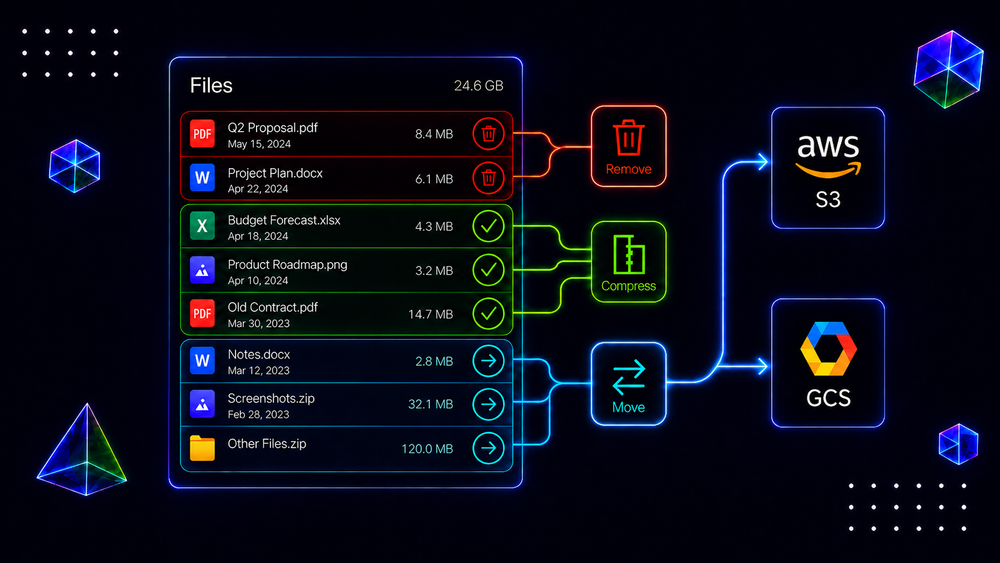
I must repent: I used to be a sinner. I used to overlook one of the most common problems in the Salesforce ecosystem: File Storage.
Storing files directly in Salesforce is convenient. Users upload a file, it appears on the record and nobody has to think about where it actually lives.
The problem is that this convenience gets expensive very quickly.
For reference, 750 GB of additional Salesforce file storage can cost your organization around $45,000 annually.
For storing files.
With all that in mind, many organizations still make the same mistake and completely avoid thinking about file storage beforehand. A few years later, they are out of storage and suddenly have to redesign the entire way they work with files.
Today, we'll look at what we can do about it.
Don't be like us. Be smarter and think about it earlier.
Salesforce Storage Calculation
Let's take Enterprise, Performance and Unlimited editions as an example.
The basic calculation looks like this:
🧮 Total File Storage = 10 GB + (2 GB × number of eligible users)
By default, you get 10 GB. Which is basically nothing.
Then Salesforce adds storage depending on the licenses in your organization. The important word here is eligible. Storage entitlement depends on licenses, while storage consumption belongs to the entire organization.
📌 Consumption ≠ entitlement
Even though Salesforce calculates storage using licenses, users do not receive their own individual storage buckets.
📌 Consumption is org wide.
If your organization has 50 GB of file storage, one user can technically consume almost all of it while another user consumes nothing. Salesforce does not care and you are still out of storage.
Nobody Likes Integrations
Before talking about AWS, Google Cloud or another external system – I'd advise you to take care of what is already inside Salesforce.
Find What Takes Space
This sounds obvious, but before deleting anything, you need to understand where your files are coming from.
We'll assume your organization has both legacy Attachment records and modern Salesforce Files stored through ContentDocument.
For Salesforce Files:
SELECT COUNT(Id), LinkedEntity.Type
FROM ContentDocumentLink
GROUP BY LinkedEntity.Type
For legacy Attachments:
SELECT COUNT(Id), Parent.Type
FROM Attachment
GROUP BY Parent.Type
For Salesforce Files, you can also look at download history:
SELECT COUNT()
FROM ContentVersionHistory
WHERE ContentVersion.ContentDocumentId = :targetDocumentId
AND Field = 'contentVersionDownloaded'
For legacy Attachments, you do not have the same option. You have to understand the business process and sometimes actually talk to people. Painful, I know.
Automate Deletion
Once you know what can be removed, automate it.
For example, for modern Salesforce Files, a simple Batch Apex implementation can look like this:
global class YourCleanupBatch implements Database.Batchable<SObject> {
    private DateTime cutoff;

    global YourCleanupBatch(Integer retentionDays) {
        cutoff = System.now().addDays(-retentionDays);
    }

    global Database.QueryLocator start(Database.BatchableContext context) {
        return Database.getQueryLocator([
            SELECT Id
            FROM ContentDocument
            WHERE CreatedDate < :cutoff
        ]);
    }

    global void execute(Database.BatchableContext context, List<ContentDocument> scope) {
        Database.delete(scope, false);
    }

    global void finish(Database.BatchableContext context) {}
}
This part is easy. Figuring out what you are actually allowed to delete is not.
Watch File Versions
A single Salesforce File can have multiple ContentVersion records.
Every time somebody uploads a new version, Salesforce keeps the previous version as well.
More often than not, somebody uploads a 20 MB presentation ten times and congratulations, you now have roughly 200 MB of presentation history.
Include file versioning in your storage analysis: If your users actually need the history, keep it. If they do not, remove previous versions.
Compress Files
Salesforce now provides native ZIP functionality through the Apex Compression namespace.
You can take binary files, create a ZIP archive and store the compressed result back in Salesforce.
There is a problem though. Once the file becomes a ZIP, your normal preview experience is gone.
And Apex heap limits still exist.
The Compression API does not make Apex capable of processing huge files. Apex still has to hold the original file and the compressed archive in a single transaction.
That said, files around 7 MB can still be compressed in asynchronous transaction, where the heap size limit is 12 MB. Keep in mind that 7 MB is just rough practical range that still leaves some heap for the compression itself. Synchronous transactions have only 6 MB of heap, so the same approach will not work there for files of that size.
And don't forget that the files add up. Two 7 MB files already require roughly 14 MB just for the original binary data, before Apex even creates the compressed archive. That is already above the 12 MB asynchronous heap limit and will fail.
Now, practically speaking, here's how to compress modern Salesforce files:
public static void compressFile(Id contentDocumentId, Id recordId) {
    List<ContentVersion> versions = [
        SELECT Title, FileExtension, VersionData
        FROM ContentVersion
        WHERE ContentDocumentId = :contentDocumentId
        AND IsLatest = true
        LIMIT 1
    ];

    if (versions.isEmpty()) {
        return;
    }

    ContentVersion version = versions[0];

    Compression.ZipWriter writer = new Compression.ZipWriter();

    String originalName = version.Title + version.FileExtension;

    // Add the original file into the ZIP
    writer.addEntry(
        originalName,
        version.VersionData
    );

    ContentVersion zipped = new ContentVersion(
        Title = version.Title,
        PathOnClient = version.Title + '.zip',
        VersionData = writer.getArchive(),
        FirstPublishLocationId = recordId
    );

    insert zipped;

    // Delete only after the ZIP exists
    delete new ContentDocument(
        Id = contentDocumentId
    );
}
Your implementation will also need to preserve all required record links, sharing and other file relationships before deleting the original.
Files Connect
Salesforce also has a built in feature called Files Connect.
It allows users to access files stored in systems such as Google Drive, SharePoint, OneDrive and Box from Salesforce.
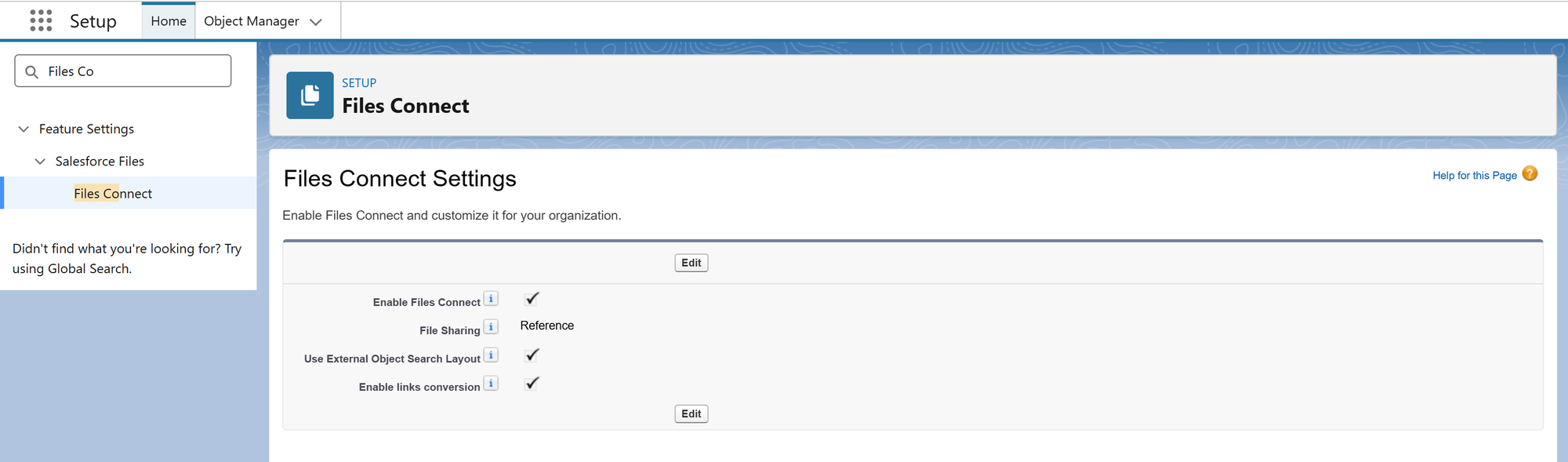
You can enable it from: Setup > Files Connect > Edit > Enable Files Connect
Files Connect supports two important modes:
- Copy brings a copy of the external file into Salesforce. That obviously does not solve your Salesforce storage problem.
- Reference keeps the actual file outside Salesforce and stores a reference to it instead. That is the one we care about here.
The Reference is the one we care about here. The external system still owns and controls the file, while Salesforce provides access to it.
For some organizations, this is enough. For others, it creates another problem: Your files still belong to whatever external account, user or system owns them.
You never establish ownership over these files. If this person deletes the file from their storage or gets fired - the link is gone.
If it does not work for you, then you have two realistic options:
- Build your own integration with external storage.
- Use a product somebody already built.
And realistically speaking, if your requirements are not crazy and your business mostly needs upload, download and preview (simple operations), this is absolutely something a Salesforce team can build.
You don't need a product doing this for you just so you can keep paying for something you could take care of once and for all.
Long term suffering vs short term sacrifice.
Choose the latter.
Everybody Likes Integrations
Now we get to AWS S3 and Google Cloud Storage. There are other options, but we'll use these two as our reference throughout this article.
They both follow the same general object storage model. You have buckets, objects, keys, metadata, uploads, downloads and lifecycle rules.
Important:
Before touching Salesforce, define your buckets, permissions, retention rules, lifecycle policies, encryption, object naming and CORS configuration.
And definitely define retention at this point.
Both platforms already give you the tools to automatically remove or transition objects after a certain period. Use them.
Backend Architecture
Considering that storage providers can change and at some point you might rethink what you're using, I strongly recommend applying dependency inversion here.
Start with a small interface that defines what your application actually needs from a storage provider:
public interface ObjectStorageProvider {
    String upload(String objectName, Blob body, String contentType);
    Blob download(String objectName);
    void deleteObject(String objectName);
}
That's all Salesforce needs to know. It knows that a file can be uploaded, downloaded and deleted. How Google Cloud Storage or AWS S3 performs those operations belongs to the implementation behind this interface.
Important:
Object names identify files inside the bucket and uploading another file under the same name can replace the existing object.
Generate your own unique object name and keep the original filename separately in Salesforce.
Now we can create the Google Cloud Storage implementation:
public with sharing class GcsStorageProvider implements ObjectStorageProvider {
    private static final Storage_Config__mdt CONFIG = Storage_Config__mdt.getInstance('GCS');

    public String upload(String objectName, Blob body, String contentType) {
        HttpRequest request = new HttpRequest();

        request.setEndpoint(
            'callout:GCS/upload/storage/v1/b/' +
            CONFIG.Bucket__c +
            '/o?uploadType=media&name=' +
            EncodingUtil.urlEncode(
                objectName,
                'UTF-8'
            ) +
            '&ifGenerationMatch=0'
        );

        request.setMethod('POST');
        request.setHeader(
            'Content-Type',
            contentType
        );

        request.setBodyAsBlob(body);

        HttpResponse response = new Http().send(request);

        Map<String, Object> result = (Map<String, Object>) JSON.deserializeUntyped(response.getBody());
        return (String) result.get('name');
    }

    public Blob download(String objectName) {
        // ...
    }

    public void deleteObject(String objectName) {
        // ...
    }
}
Notice the ifGenerationMatch=0 at the end of the upload URL. Even though we're already generating unique object names, I would still keep this protection.
It tells GCS to create the object only if no live object already exists under that name. If somehow we generate a collision, the request fails instead of replacing somebody else's file.
Another thing to keep in mind is that authentication belongs in Named Credentials and External Credentials, while configuration that is safe to store as metadata goes into Custom Metadata.
For example:
Provider: GCS
Bucket: company-salesforce-files
Root Path: production/
Maximum File Size: 500 MB
The bucket name, root path and file size limit are configuration. Service account private keys, AWS secret keys and access tokens are credentials and must not live there.
Now we put the provider behind a service:
public with sharing class FileStorageService {
    private ObjectStorageProvider storage;

    public FileStorageService(ObjectStorageProvider storage) {
        this.storage = storage;
    }

    public String upload(Id recordId, String fileName, Blob body, String contentType) {
        String objectName = createObjectName(recordId, fileName);
        return storage.upload(
            objectName,
            body,
            contentType
        );
    }

    private static String createObjectName(Id recordId, String fileName) {
        // unique name
    }
}
For small files, the controller now look something like this:
@AuraEnabled
public static String upload(Id recordId, String fileName, String base64Data, String contentType) {
    Blob body = EncodingUtil.base64Decode(base64Data);

    FileStorageService service = new FileStorageService(
        StorageProviderRouter.get() // Decides which provider to use, GCP or AWS, based on a custom metadata field
    );

    return service.upload(
        recordId,
        fileName,
        body,
        contentType
    );
}
And I want to emphasize small files here. Passing Base64 from LWC into Apex is absolutely not the approach we'll use for large uploads. We'll get to those shortly.
With this approach, if tomorrow you decide to move to AWS S3, you create another class implementing exactly the same interface:
public with sharing class S3StorageProvider implements ObjectStorageProvider {
    public String upload(String objectName, Blob body, String contentType) {
        HttpRequest request = new HttpRequest();

        request.setEndpoint(
            'callout:S3/' + objectName
        );

        request.setMethod('PUT');
        request.setHeader(
            'Content-Type',
            contentType
        );

        // Never replace an existing object
        request.setHeader(
            'If-None-Match',
            '*'
        );

        request.setBodyAsBlob(body);

        HttpResponse response = new Http().send(request);
        return objectName;
    }

    public Blob download(String objectName) {
        // ...
    }

    public void deleteObject(String objectName) {
        // ...
    }
}
Then your router decides which implementation gets used:
public class StorageProviderRouter {
    public static ObjectStorageProvider get() {
        String provider = Storage_Config__mdt.getInstance('Default').Provider__c;

        if (provider == 'S3') {
            return new S3StorageProvider();
        } else if (provider == 'GCS') {
            return new GcsStorageProvider();
        }

        // ...
    }
}
That's the main benefit of doing this properly. Your controller, UI and business logic don't need to know how GCS works or how AWS signs a request. If the provider changes, you replace the implementation instead of rewriting the application.
Frontend Architecture
The next question is how your users actually work with these files.
Since the files no longer live in Salesforce, the standard Files component will not represent your external storage anymore. The most realistic approach is to build a Lightning Web Component that replaces that experience.
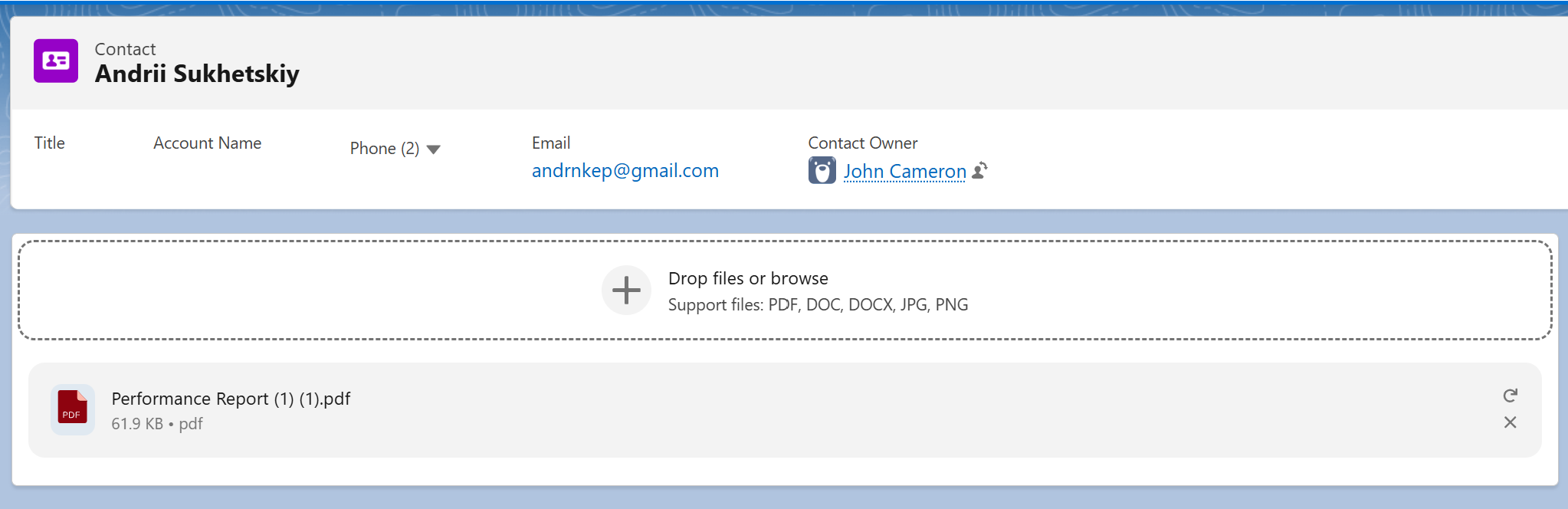
Your component queries ExternalFile__c custom records and shows the information users actually care about: filename, type, size, created date and whatever else makes sense for your organization.
The important part is that your UI works with the Salesforce record Id, not the GCS object name or S3 key.
For example:
@AuraEnabled(cacheable=true)
public static List<ExternalFile__c> getFiles(Id recordId) {
    return [
        SELECT Id, FileName__c, MimeType__c, Size__c
        FROM ExternalFile__c
        WHERE ParentRecordId__c = :recordId
        WITH USER_MODE
    ];
}
Notice that ObjectId__c is not returned to the component because it has absolutely no reason to be there.
When a user clicks Download, Preview or Delete, send the Salesforce Id back to Apex. Apex resolves the object key, checks whether the user is allowed to perform that operation and only then talks to external storage.
Your actual flow now looks like this:
LWC → Controller → File Service → Storage Provider → External Storage
This also gives you one place to enforce security instead of trusting every component that happens to know where a file lives.
File Preview
While implementing your own file interface, previewing files will most likely become the next challenge. Take my word for it.
S3 and Google Cloud Storage store your bytes. They don't take a Word document and somehow give you a browser preview of it.
For formats that browsers cannot display themselves, the cleanest approach is to generate a PDF preview. Keep the original file untouched for downloading and create another object containing the preview.
You can then load pdf.js into Salesforce as a Static Resource and use it from your Lightning Web Component to render the PDF.
Note: Images are easier. If the file is an image, there is no reason to convert it into PDF at all. Instead, download it and use a normal <img> element.Large File Uploads
Now we get to one of the most important parts of the entire implementation.
If your users upload large files, chunk them in JavaScript.
Do not take a 500 MB file, convert it into Base64 and send it into Apex. Salesforce limits will stop you long before you get anywhere.
The browser already has the file as a File or Blob, so let JavaScript split it into smaller pieces and send those pieces directly to the storage provider.
AWS calls this Multipart Upload while Google Cloud Storage calls it Resumable Upload. Their APIs are different, but the general idea is almost identical: create the upload, send the file in chunks, retry failed chunks if applicable and complete the upload at the end.
Secure Architecture
1️⃣ Never expose cloud credentials to JavaScript. Your LWC does not need an AWS secret key or a Google service account credential. It gets temporary authorization for the specific upload or download that the user is allowed to perform.
2️⃣ Check Salesforce access before creating that authorization. Knowing an ExternalFile__c Id does not give somebody permission to download it. Apex first checks record access and your file permission model, then resolves the storage key and creates temporary access.
3️⃣ Keep temporary authorization short lived. An S3 presigned URL grants access until it expires. A GCS resumable session URI grants access to that upload session. Give the browser only that and nothing more.
4️⃣ Do not trust file extensions. A file called invoice.pdf is not necessarily a PDF. Read the actual file signature and validate enough bytes to identify the format correctly.
For example:
PDF:  25 50 44 46
PNG:  89 50 4E 47
JPEG: FF D8 FF
ZIP:  50 4B 03 04
5️⃣ Use checksums. Verify that the object stored externally is the same binary content that was uploaded. Checksums also give you a way to identify exact duplicates if you ever decide to go down that path. Probably don't build an entire deduplication empire because I mentioned it, just a thought.
6️⃣ Enforce a maximum file size. Check it in JavaScript so users receive an immediate message and enforce it again on backend because client side validation can always be bypassed.
7️⃣ Keep storage identifiers away from the UI. Your component works with an ExternalFile__c Id. The backend knows the S3 key or GCS object name. Temporary signed URLs are obviously sent to the browser because that is exactly what they exist for, but they expire and cannot be reused.
8️⃣ Configure both Salesforce CSP. A Lightning Web Component cannot simply start calling any external endpoint it wants. Add the required storage domain as a Trusted URL in Salesforce and configure CORS on S3 or GCS for the Salesforce domains that need access. Salesforce explicitly requires trusted URLs for third party JavaScript calls and the external service still needs to allow the Salesforce origin through CORS.
Migrate Existing Files
Now you've built the new architecture and everything looks great, but the hundreds of gigabytes already sitting in Salesforce haven't just disappeared.
Therefore, for a real migration, use an external Node.js or Python process that can retrieve the Salesforce file as a stream and send that stream directly into the destination storage. That's pretty much the only way you have.
The migration itself follows a very predictable process:
- Query the Salesforce files you want to migrate.
- Retrieve the latest
ContentVersionor every version you need to preserve. - Stream
VersionDatafrom Salesforce. - Stream the same data into S3 or GCS.
- Verify the destination object.
- Create your
ExternalFile__crecord and preserve its Salesforce relationships. - Mark the migration as completed.
- Delete the Salesforce copy only after everything above succeeded.
Existing Solutions
Considering everything we've discussed so far, the reasonable question is whether somebody can just do all of this for you.
The answer is yes.
There are products that replace Salesforce file storage with external storage and provide their own components around it. Some also give you functionality that would take significantly more work to build yourself.
I won't spend half of the article comparing them because nobody paid me to do so, but there is one thing I would pay a lot of attention to: migration.
If you're already sitting at 100% Salesforce storage, a product that only takes care of tomorrow's uploads does not solve today's problem. Ask whether it migrates existing Salesforce Files, whether it understands legacy Attachments, whether it preserves multiple versions and record relationships.
You are paying somebody specifically so you don't have to build all of this yourself. Make sure they actually take the difficult part away.
For reference, I've recently come across Sliick Files. No advertisement, but if you work there, here is the link for your donation for me mentioning it: https://www.bulkifiedthinking.com/#/portal/support
Sliick provides its own Salesforce file interface and supports bring your own storage with providers including Amazon S3, Google Cloud, Azure and SharePoint.
This is exactly the kind of architecture I'd look for when evaluating products in this area. Storage belongs to you, Salesforce remains the business layer and users don't have to care where the bytes physically live.
Migration is still something I would specifically validate during the evaluation because this is where the actual storage problem gets solved.
Google Client for Salesforce
A quite different option is Google Client for Salesforce, a free and open source solution that replaces Salesforce file storage with Google Drive and replaces the normal Salesforce file experience with its own components.
Google Drive is not an object storage system like AWS S3 or Google Cloud Storage. It is a file and document platform, which naturally gives you more capabilities around the files themselves.
You already have folders, file permissions, shortcuts, Google native documents and APIs built specifically around people working with files. Google Client uses those capabilities to provide things such as automatic folder structures, file intelligence, AI functionality and the rest of the file management experience. Its folder structure, for example, can automatically organize uploaded files by Salesforce user, record or both.
The current open source project does not migrate your existing Salesforce Files, so that part still remains something you have to handle separately.
It's painful, I know.
That's all for today. Be mindful about your decisions and remember that whatever decision you make, never admit it's a bad decision. Therefore, people will admire you.

Comments
This is where you disagree
Comments are for subscribers, mostly to keep the noise down. It’s free to join and takes about a minute.