The other day, a fellow Salesforce developer confidently told me:
You can’t build a real-time application in Experience Cloud because users can’t subscribe to events. And if you want to include guest users — they don’t even have a session ID to interact with CometD.
Challenge accepted.
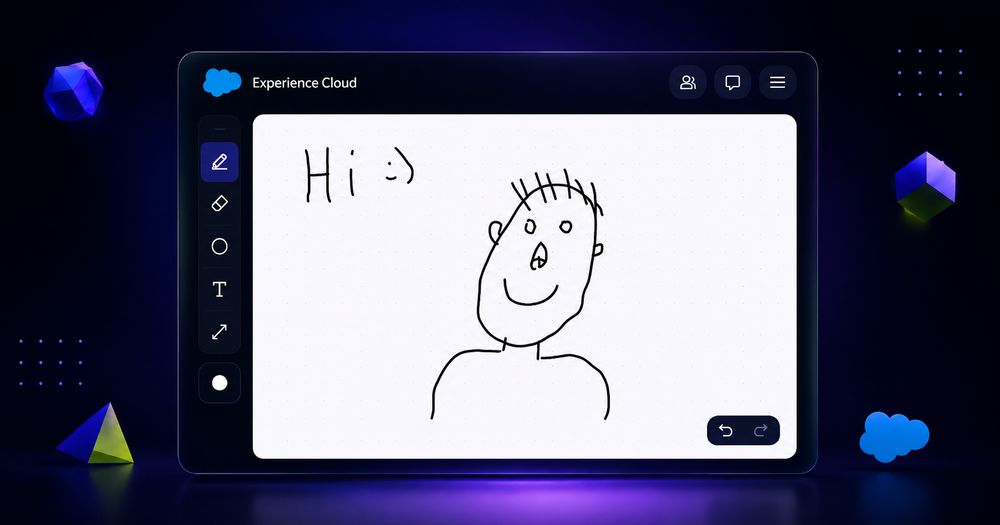
Fast forward 48 hours, some stubborn caffeine-fueled nights, and deep dives into Salesforce limits: I built a working real-time drawing board. Guest users could draw. Everyone saw it live. All on Experience Cloud. No third-party services. Just Salesforce doing what it was never meant to do.
So, how did I do it?
Salesforce Limitations
The first question for anyone who hasn’t worked on real-time applications in Experience Cloud might be:
What’s the actual problem, and how is Experience Cloud different from core Salesforce?
There are actually two key issues.
- Community users can’t subscribe to the Platform Events.
In other words, the standard subscription code in Lightning Web Components simply won’t work:
import { subscribe, unsubscribe, onError } from "lightning/empApi";

await subscribe(
  "/event/RealTimeDraw__e",
  -1,
  (event) => this.handleDrawEvent(event)
);
This is because community users don’t have access to Push Topics (idea), which form the foundation for Platform Events in Salesforce.
2. Unauthenticated (Guest) users face an even bigger limitation.
Not only are they restricted from subscribing to events like community users, but they also don’t have a session ID. If you attempt to retrieve it with Apex, for a guest user it will return null:
@AuraEnabled
public static String getSessionDetails() {
    String sessionId = UserInfo.getSessionId(); // null
    return sessionId;
}
This might not sound immediately related, but you’ll soon see that the session ID is critical for subscribing to CometD-based real-time events.
My Approach to Subscribing to Platform Events
First of all, I needed to acknowledge that Salesforce Platform Events use CometD, a library that performs messaging over the web. And that’s exactly what we need to focus on.
The first question that came to mind was:
What if it wasn’t Experience Cloud? Say, any external service that wants to receive events from Salesforce? I mean, they must have provided an option for that… right?
I was right. Salesforce provides a specially designated endpoint that can be called from any source:
URL: https://yourInstance.salesforce.com/cometd/66.0
Authorization: Bearer YOUR_ACCESS_TOKEN
The procedure is fairly standard:
- Retrieve a Bearer access token
- Call this endpoint to perform a handshake and subscribe to the corresponding event
Retrieving the Bearer Access Token
This part is surprisingly easy. The standard UserInfo.getSessionId() method returns exactly what we need—it’s the same token. You can simply call an Apex controller when the Lightning Web Component loads and retrieve the session ID:
// Apex Controller
@AuraEnabled
public static String getSessionDetails() {
    return UserInfo.getSessionId();
}
// Lightning Web Component
import getSessionDetails from '@salesforce/apex/RealTimeController.getSessionDetails';
...
getSessionDetails()
.then(result => {
this.sessionId = result;
});Handshake and Platform Event Subscription
Here’s where it gets interesting. We need to call that cometd/64.0 endpoint, but using Apex & REST API won’t work in this case. It seems I’m stuck.
Well…. Yes and No.
The idea turned out to be quite simple: Since Platform Events are actually powered by CometD, why not just download the CometD library and host it as a static resource?
CometD Download: LINK
Afterward, in your Lightning Web Component, use loadScript to load this library. Then you can call the functions from CometD directly to send a handshake request to Salesforce. Yes, we can do that.
import cometdLib from '@salesforce/resourceUrl/CometDLib';

loadScript(this, cometdLib + '/cometd/cometd.js')
  .then(() => {
      this.cometd = new window.org.cometd.CometD();
      this.cometd.websocketEnabled = false;
      this.cometd.configure({
          url: 'https://inddev2-dev-ed.my.salesforce.com/cometd/64.0', // I'll explain below why this will fail
          requestHeaders: { Authorization: 'OAuth ' + this.sessionId },
          appendMessageTypeToURL: false
      });

      this.cometd.handshake(handshake => {
          if (handshake.successful) {
              this.cometd.subscribe('/event/RealTimeDraw__e', ({ data: { payload } }) => {
                  // ...
              });
          }
      });
  });
Surprisingly, Salesforce does not check whether the current user has access to Push Topics when using this approach, unlike when using the lightning/empApi module. Lucky for us.
CORS Issues (Cross-Origin Resource Sharing)
Another issue I ran into was this odd error when trying to initiate the handshake against the following endpoint:
Endpoint: https://inddev2-dev-ed.my.salesforce.com/cometd/64.0
Error: Access to XMLHttpRequest at 'https://inddev2-dev-ed.my.salesforce.com/cometd/64.0' from origin 'https://inddev2-dev-ed.my.site.com' has been blocked by CORS policy: Response to preflight request doesn't pass access control check: No 'Access-Control-Allow-Origin' header is present on the requested resource.
The browser enforces a security mechanism called CORS (Cross-Origin Resource Sharing). When you call an endpoint, the server must respond with an Access-Control-Allow-Origin header. If it doesn’t, the browser blocks the request for security reasons.
And although Salesforce provides the ability to configure a CORS whitelist (here), this does not apply to the /cometd endpoint. So, even after adding my site to the CORS list, the issue persisted.
The fix was simple: Instead of calling the Salesforce domain, use your Experience Cloud site domain, for instance:
❌ https://inddev2-dev-ed.my.salesforce.com/cometd/64.0
✅ https://inddev2-dev-ed.my.site.com/cometd/64.0
This avoids the CORS issue entirely, because the request is considered same-origin, and CORS isn’t triggered at all. The handshake was successfully created.
First win.
Guest Users Subscribing to Platform Events
Now it’s clear why a session ID is needed — it’s the same as the access token used to initiate a handshake.
But this raises another problem: unauthorized users don’t have one. So how can they initiate a handshake?
There are several ways to approach this issue. I chose the most straightforward one: creating a dedicated integration user specifically for guest access.
When the Apex controller is called, I check whether the user has a session. If not, I generate one manually:
@AuraEnabled
public static String getSessionDetails() {
    String sessionId = UserInfo.getSessionId();

    if (String.isBlank(sessionId)) {
        return getTokenForUser();
    } else {
        return sessionId;
    }
}

private static String getTokenForUser() {
    String loginUrl = 'https://login.salesforce.com';

    HttpRequest req = new HttpRequest();
    req.setEndpoint(loginUrl + '/services/oauth2/token');
    req.setMethod('POST');
    req.setHeader('Content-Type', 'application/x-www-form-urlencoded');
    req.setBody(body); // Use External App for Integration User

    Http http = new Http();
    HttpResponse res = http.send(req);

    if (res.getStatusCode() == 200) {
        Map<String, Object> tokenMap = (Map<String, Object>) JSON.deserializeUntyped(res.getBody());
        return (String) tokenMap.get('access_token');
    }
}
In this case, the biggest concern is security.
Try to restrict this user as much as possible, granting access only to what’s absolutely necessary.
Second win.
Creating an Interactive Drawing Board
Now that we have the handshake, it’s time to implement the component itself.
First of all, for the drawing functionality, I used the HTML <canvas> element, which provides a drawable region within a web page.
By itself, it’s just a container, but with the right JavaScript code - it becomes a powerful rendering surface. The first step is to obtain a reference to the canvas element and access its 2D rendering context, which allows us to specify how and where to draw lines.
this.canvas = this.template.querySelector('canvas');
this.context = this.canvas.getContext('2d');
Next, we need to add EventListeners for mouse movement, as well as for mouse press and release actions to start and stop drawing. We'll also make it compatible with mobile devices, which use touch events instead of mouse events.
this.canvas.addEventListener('mousedown', e => {
    // ...
});

this.canvas.addEventListener('mousemove', e => {
    // ...
});

window.addEventListener('mouseup', () => {
    // ...
});

this.canvas.addEventListener('touchstart', e => {
    // ...
}, { passive: false });

this.canvas.addEventListener('touchmove', e => {
    // ...
    e.preventDefault(); // prevent scrolling while drawing
}, { passive: false });

window.addEventListener('touchend', () => {
    // ...
});
Finally, to render what we’ve drawn, we use the following core Canvas API methods: beginPath(), moveTo(), lineTo(), and stroke(). We won’t go into detail about each one, just understand that every shape you draw, whether it’s a line or a circle, is defined by a sequence of coordinates (x, y). In this sense, what we’re storing is a vector representation of the drawing.
initializeCanvas() {
    this.canvas.addEventListener('mousedown', e => {
        this.startDrawing(e.offsetX, e.offsetY);
    });

    this.canvas.addEventListener('mousemove', e => {
        this.continueDrawing(e.offsetX, e.offsetY);
    });

    window.addEventListener('mouseup', () => {
        this.stopDrawing();
    });

    this.canvas.addEventListener('touchstart', e => {
        const touch = e.touches[0];
        const rect = this.canvas.getBoundingClientRect();
        const x = touch.clientX - rect.left;
        const y = touch.clientY - rect.top;
        this.startDrawing(x, y);
    }, { passive: false });

    this.canvas.addEventListener('touchmove', e => {
        const touch = e.touches[0];
        const rect = this.canvas.getBoundingClientRect();
        const x = touch.clientX - rect.left;
        const y = touch.clientY - rect.top;
        this.continueDrawing(x, y);
        e.preventDefault(); // prevent scrolling while drawing
    }, { passive: false });

    window.addEventListener('touchend', () => {
        this.stopDrawing();
    });
}

startDrawing(x, y) {
    this.drawing = true;
    this.currentStroke = [{ x, y }];
    this.context.beginPath();
    this.context.moveTo(x, y);
}

continueDrawing(x, y) {
    if (!this.drawing) return;
    this.currentStroke.push({ x, y });
    this.context.lineTo(x, y);
    this.context.stroke();
}

stopDrawing() {
    if (this.drawing) {
        this.drawing = false;
        this.strokes.push(this.currentStroke);
    }
}
Just a few methods and we already have visualization of our drawings. Just for myself, no real-time interactions yet, but it’s a good start.
Vector-based Storage
Before we dive into publishing events and reflecting drawings across all users, let’s first address the most critical topic: data storage.
No matter how well the idea is implemented, storing data in an inefficient format can lead to latency and problems with transmission.
In our case, the most appropriate solution was a vector-based system. This approach stores all drawing data using the same coordinate system (x, y) that we use while drawing. Each stroke is captured point by point in the order it was created.
this.strokes = [
    [ {x, y}, {x, y}, ... ], // Stroke 1
    [ {x, y}, {x, y}, ... ], // Stroke 2
    ...
];
This is vector-based drawing: each stroke is stored as an array of 2D points, which can later be redrawn using context.lineTo().
- Lightweight storage (just a list of points)
- Scalable without loss of quality
- Easy to serialize and transmit
- Supports real-time drawing replays or undo/redo
But I decided that this wasn’t enough. Sometimes, these vectors are stored with excessive precision, down to the hundredths place, which makes no sense. We’re not launching a rocket into space here. So, I introduced the following optimization:
optimizeStroke(stroke) {
    return stroke.map(p => ({
        x: +p.x.toFixed(1),
        y: +p.y.toFixed(1)
    }));
}
This function optimizes a stroke by reducing the precision of each point to one decimal place.
After experimenting with it for a while, and completely blacking out the container, I realized that this still wasn’t enough. How do you capture the chaotic strokes of a wild abstractionist? This is where data compression comes into play.
Pako JavaScript Library
Even though our vector-based data storage and optimization made sense, I was already pushing the limits. So, in addition to that, I introduced the Pako library, which allows you to compress and decompress data. This helped reduce the size of the stroke array by approximately 60%.
Pako Download: LINK
I added it to static resources alongside the CometD library and prepared two utility functions responsible for encoding and decoding the drawing data:
import pakoLib from '@salesforce/resourceUrl/PakoLib';

compressData(jsonData) {
    const compressed = window.pako.deflate(jsonData);
    return btoa(String.fromCharCode.apply(null, compressed));
}

decompressData(base64Data) {
    const strData = atob(base64Data);
    const binData = new Uint8Array(strData.length);
    for (let i = 0; i < strData.length; i++) binData[i] = strData.charCodeAt(i);
    return window.pako.inflate(binData, { to: 'string' });
}
Now I’m ready to transfer this data between users.
Real-Time Data Transmission
My initial implementation of the drawing board did not account for maintaining or restoring the board’s state when the component was loaded. In other words, there was no initial state, users would only see drawings created after they joined. The board would appear empty upon first load.
This decision was intentional and made to reduce the Bandwidth Allocation limits in Experience Cloud. Since the app was developed in a Sandbox environment, any unnecessary complexity or large data payloads could quickly exhaust available resources.
Therefore, let’s focus on the core interaction: a user visits the board and draws a line, how is this line shared with other users?
Publishing a Platform Event
There is no way to publish a Platform Event directly from a Lightning Web Component, so this had to be handled via Apex. I created a method that is called each time the user finishes a stroke, either by releasing the mouse button or lifting their finger (for touch input).
import publishRealTimeDrawEvent from '@salesforce/apex/RealTimeController.publishRealTimeDrawEvent';

stopDrawing() {
    if (this.drawing) {
        this.drawing = false;
        const optimized = this.optimizeStroke(this.currentStroke);
        this.strokes.push(optimized);
        this.publishDrawingEvent(optimized); // New function added
    }
}

publishDrawingEvent(stroke) {
    const compressedStroke = this.compressData(JSON.stringify([stroke]));
    publishRealTimeDrawEvent({
      compressedState: compressedStroke,
      localSessionId: this.localSessionId
    })
    .then(() => {
        console.log('Event published successfully');
    });
}
This function compresses only the new stroke’s (x, y) data and sends it to the Apex method. There's no need to send the entire board state, since all previous strokes are assumed to have been successfully synchronized already.
@AuraEnabled
public static void publishRealTimeDrawEvent(String compressedState, String localSessionId) {
    EventBus.publish(
        new RealTimeDraw__e(
            State__c = compressedState,
            LocalSessionId__c = localSessionId
        )
    );
}
A note on the LocalSessionId__c parameter: This is a locally generated, random string that uniquely identifies each user session on the client side. It is not the same as the Salesforce Session ID (Access Token), which is only used for establishing a CometD handshake.
The localSessionId is used to differentiate between guest users, particularly to filter out the stroke initiator from receiving their own event back. Why redraw something that the user just submitted and already sees locally?
Receiving a Platform Event
Now that the event is being successfully published, only a few steps remain. Since I had already set up the CometD handshake and subscribed to the RealTimeDraw__e Platform Event earlier, all that’s left is to listen for incoming events and synchronize the new strokes.
this.cometd.subscribe(
  '/event/RealTimeDraw__e',
  ({ data: { payload } }) => {
    console.log('event received');
    if (payload.LocalSessionId__c != this.localSessionId) {
        this.loadCanvasData(payload.State__c);
    }
});
Here, I use the previously defined localSessionId to filter out self-published events, ensuring that only strokes from other users are processed and rendered. This prevents the initiating user from redundantly receiving and redrawing their own input.
The next step is to decompress the received data and render the stroke on the canvas, effectively keeping all users’ boards in sync.
loadCanvasData(compressedData) {
    try {
        const jsonData = this.decompressData(compressedData);
        const newStrokes = JSON.parse(jsonData);
        this.strokes = [...this.strokes, ...newStrokes];
        this.redrawStrokes();
    } catch (error) {
        console.error('Load canvas error:', error);
    }
}

redrawStrokes() {
    if (!this.context) return;
    this.context.clearRect(0, 0, this.canvas.width, this.canvas.height);
    this.context.beginPath();
    this.strokes.forEach(stroke => {
        if (stroke.length > 0) {
            this.context.moveTo(stroke[0].x, stroke[0].y);
            stroke.forEach(pt => this.context.lineTo(pt.x, pt.y));
        }
    });
    this.context.stroke();
}
Mission accomplished.
Final Thoughts
At its peak, this real-time drawing board supported 16 active guest users, helping some discover new talents, and perhaps even inspiring a future artist or two.
In total, it took only 3 hours to completely hit the Sandbox limit of 10,000 delivered Platform Events. After that, users could continue drawing locally, but real-time synchronization stopped functioning.
What would I have done differently?
The redrawStrokes function, responsible for rendering strokes, was initially designed to redraw all strokes every time a new event was received. In testing, I realized this was inefficient and unnecessary: all previously drawn strokes were already on the board. I only needed to render the new stroke received via the event.
❌ redrawStrokes() {
    if (!this.context) return;
    this.context.clearRect(0, 0, this.canvas.width, this.canvas.height);
    this.context.beginPath();
    this.strokes.forEach(stroke => {
        if (stroke.length > 0) {
            this.context.moveTo(stroke[0].x, stroke[0].y);
            stroke.forEach(pt => this.context.lineTo(pt.x, pt.y));
        }
    });
    this.context.stroke();
}
This led to a strange issue: if a user was in the middle of drawing and a new event arrived, the current stroke would get interrupted or corrupted, breaking the user’s experience.
What am I proud of?
The strategy of compressing and storing strokes paid off. It significantly optimized data transfer, kept the board responsive, and most importantly, helped us stay well within Sandbox limits, without even approaching the bandwidth ceiling.
🎯 Key Lesson
How data is stored and transferred is critical in real-time applications.
GitHub Repository
If you’d like to see the full implementation, including LWC code, Apex, static resources, and compression utilities, you can check out the repository here: CLICK
And if anything seems unclear, feel free to shame me in the comments, after all, I’m probably an idiot. 😉
Thanks to everyone who participated and helped test this out!

Comments
This is where you disagree
Comments are for subscribers, mostly to keep the noise down. It’s free to join and takes about a minute.