One of the most common frustration posts I see on LinkedIn is about User Interface development. The crying that you constantly have to align containers, position them properly, fight SLDS overrides and deal with all that kind of stuff.
These people obviously have never heard of such a thing as MCP.
There are plenty of MCP servers that can help your agents do more than blindly write code. They can follow Lightning Web Component standards, open the browser themselves, look at what they created and make changes accordingly.
And yes, you see where I'm going with this.
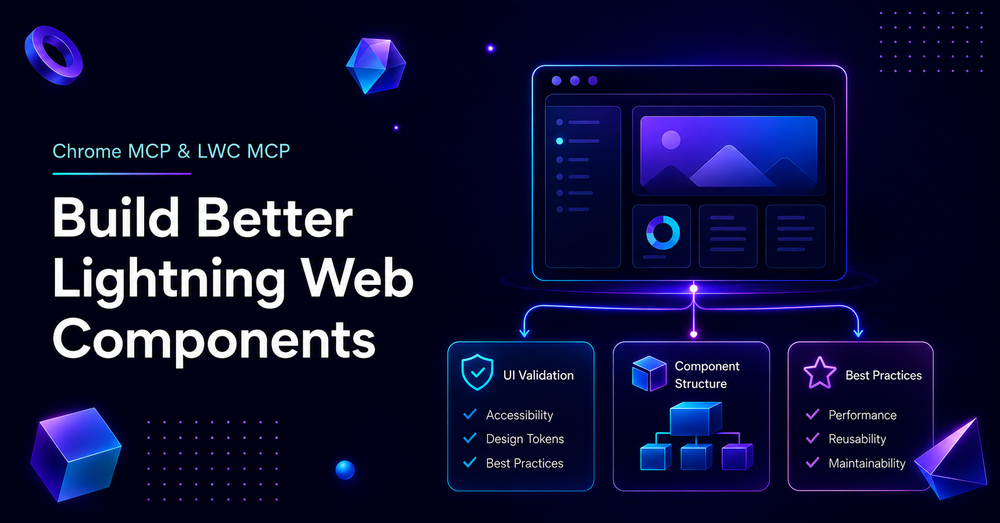
Today, we're going to cover Chrome DevTools MCP and LWC MCP tools: how they can help your agents produce better results without you constantly opening the page, looking at the mess they created, and asking them to move something three pixels to the left.
This article is based on my experience working with both MCPs, including a truthful review of whether they actually bring any value and what that "value" looks like in practice.
What Chrome MCP Gives You
Often referred to as Chrome DevTools MCP, it gives your agents (Claude, Copilot and others) tools for browser automation, debugging, performance analysis, network inspection, screenshots and more.
Basically, this MCP allows your agents to open and navigate a browser, change viewport sizes, take screenshots, evaluate the performance and analyze your Lightning Web Component while they're creating it.
In many cases, this results in much better accuracy when following your UI requirements without making you adjust the interface every. single. time.
The value of this and other MCPs is that they give the agent a standardized, discoverable set of tools instead of making it invent its own way of controlling the browser.

Remember: Your AI agents can make it work without MCP. But at what cost?
What LWC MCP Gives You
This one has a slightly different nature.
A large portion of the lwc-experts toolset gives your AI agent specialized knowledge about how Lightning Web Components should be built: LWC development guidelines, SLDS, accessibility, Lightning Web Security, compilation errors, testing and best practices.
You can almost think of part of it as a collection of skills wrapped behind an MCP interface.
Here, you might ask me what the difference is between that and a skill.
And I'll tell you.
With a skill, the agent is generally given a lot of instructions and knowledge telling it how to approach a particular task.
With MCP, capabilities are exposed to the agent as structured tools it can discover and call when needed. Not all at once.
Basically, it's another way (better or worse) of working with a large knowledge base without dumping all of it into the model's context at once.
Connect Chrome MCP
You have a few options for connecting this local MCP server. You can read more about local versus remote MCP servers here.
If you're using Claude Code, one of the easiest approaches is to create a file called .mcp.json in your project root and specify the following:
{
  "mcpServers": {
    "chrome-devtools": {
      "command": "npx",
      "args": ["-y", "chrome-devtools-mcp@latest"]
    }
  }
}
Afterward, restart your Claude Code / VS Code and approve (if applicable) the MCP server.
That's basically it.
What about Copilot?
There is one little distinction worth mentioning here.
Claude Code uses:
.mcp.jsonVS Code's native MCP configuration for Copilot is documented as:
.vscode/mcp.jsonIt also uses a slightly different top-level structure:
{
  "servers": {
    "chrome-devtools": {
      "command": "npx",
      "args": [
        "-y",
        "chrome-devtools-mcp@latest"
      ]
    }
  }
}
VS Code can also discover MCP configurations from other supported clients when MCP discovery is enabled, so depending on your setup, you may be able to reuse the configuration you already have for Claude.
If you're not Good Enough
You can always do it in the not-so-cool way.
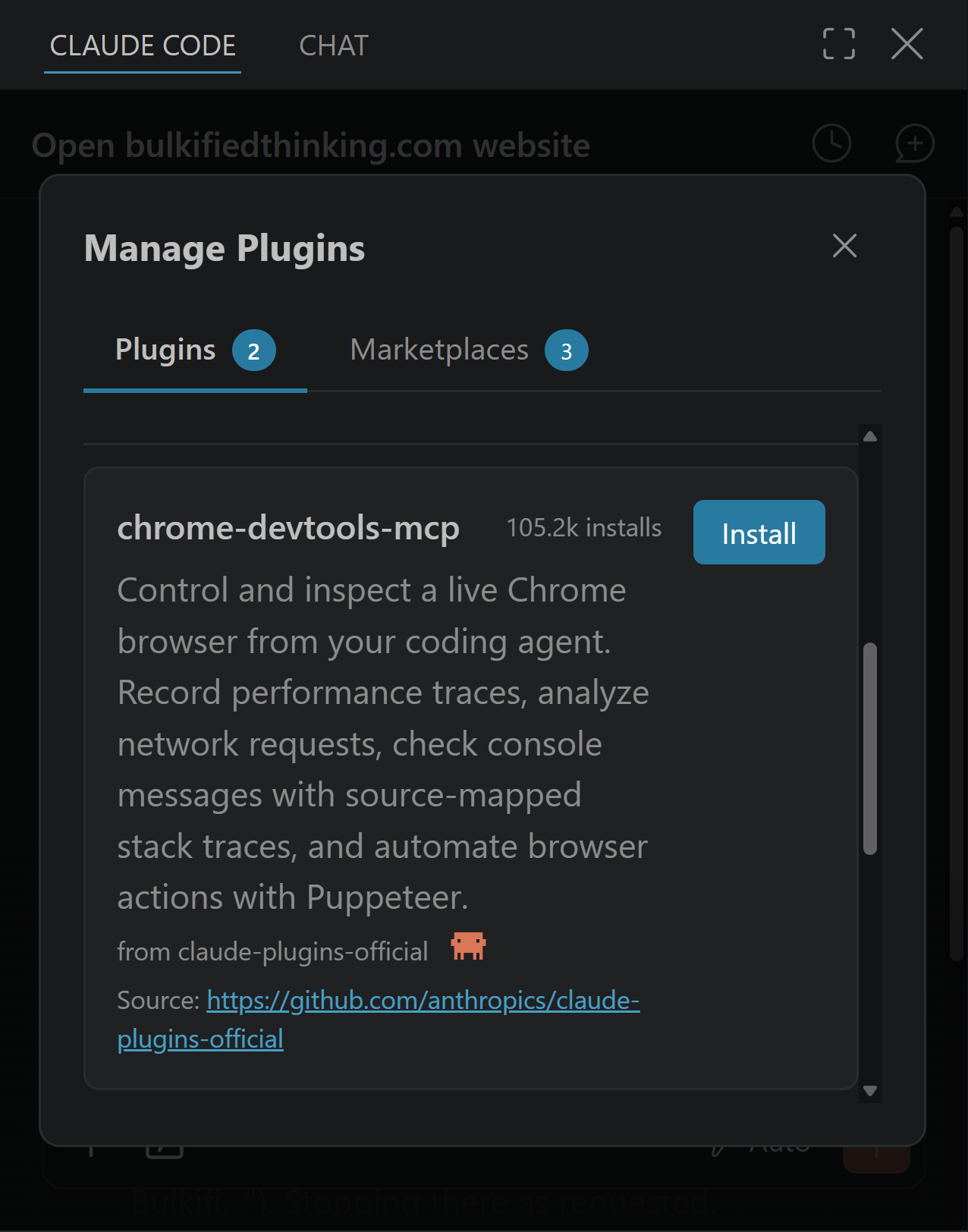
Claude Code / VS Code
Go to the “Manage Plugins” window and find the “chrome-devtools-mcp” plugin. Click “Install” and you’re done.
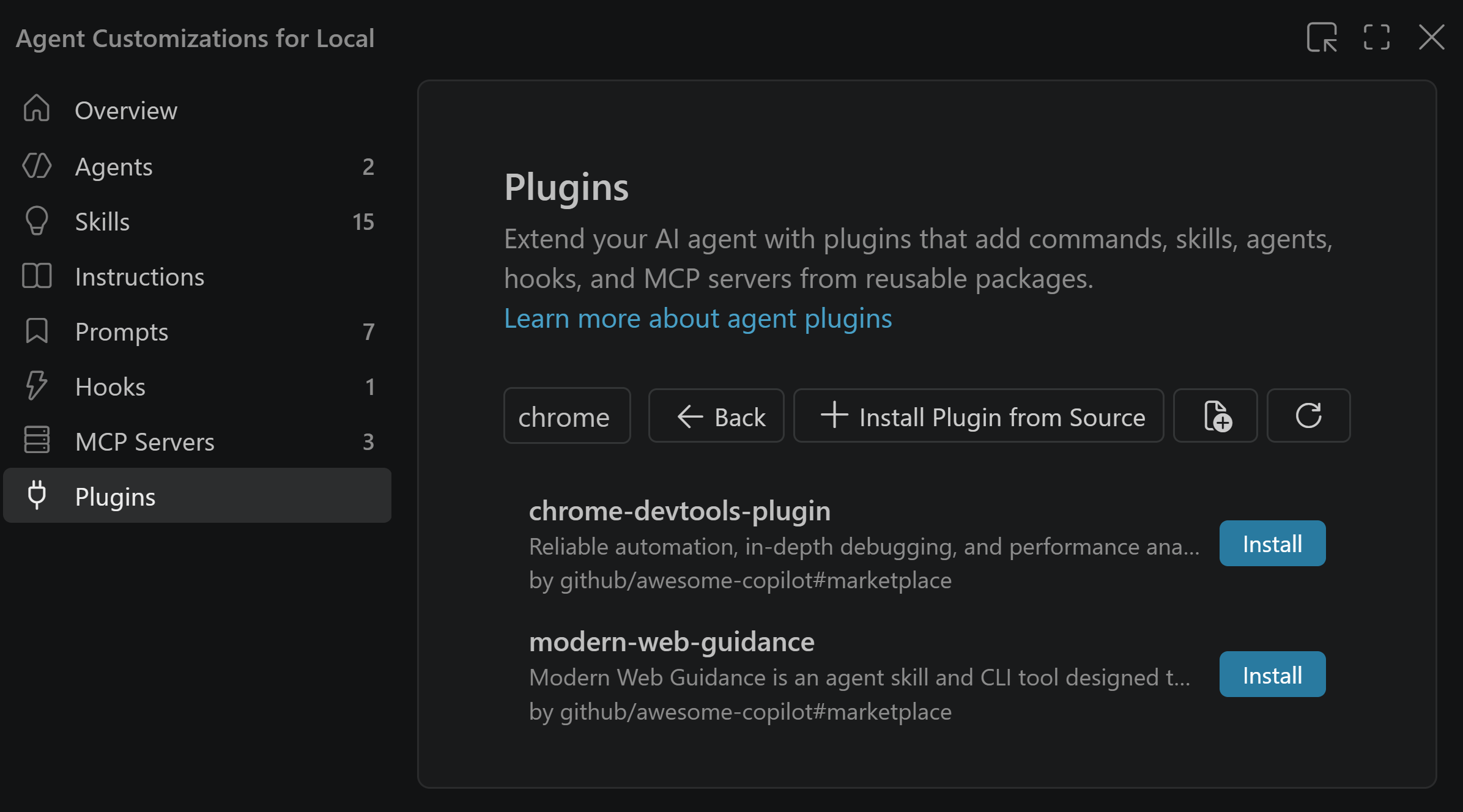
Copilot
Go to the settings gear icon, go to the “Plugins” section on the left, open the marketplace, and search for “chrome-devtools-plugin”. Click “Install” and that’s it.
Use Chrome DevTools MCP
It's quite easy.
If you're creating a new Lightning Web Component, all you have to mention is something like:
Verify that it looks good.
Or:
Verify that all text is aligned to the center.
Now that Chrome DevTools MCP is available, the agent can use its browser tools to open the application, inspect the page, take screenshots and verify the result.
It really helps if you happen to have a Canva or Figma design, screenshot, or any other sample showing exactly what the interface is supposed to look like.
In those cases, your agent has something concrete to compare its result against.
Without a reference, it can still make mistakes and inaccuracies because there is nothing objective to compare the result against.
Leaving your entire User Interface to your agent's judgment is not the best judgment call you've ever made.
Connect LWC MCP Tools
MCP Tools for LWC are still a Beta service as of August 2026 and are subject to Salesforce's Beta Services Terms and all the other bla-bla-bla, so use them at your sole discretion.
This MCP might be a little trickier to connect. At least it was for me.
Allow me to walk you through the suffering.
Connection Timeout
Just like with Chrome DevTools MCP, if you're using Claude Code, you can create or use an existing .mcp.json file in your project root:
{
  "mcpServers": {
    "salesforce-dx": {
      "command": "npx",
      "args": [
        "-y",
        "@salesforce/mcp",
        "--orgs",
        "DEFAULT_TARGET_ORG",
        "--toolsets",
        "lwc-experts,experts-validation",
        "--allow-non-ga-tools"
      ]
    }
  }
}
You can absolutely include Chrome DevTools MCP and Salesforce DX MCP in the same configuration file.
However, this particular setup did not work for me on the first try. I'm not saying it will happen to you. It's absolutely worth trying first. It just most certainly failed in my case with a connection timeout.
One lesson learned here: if you're using Agentforce Vibes, Salesforce DX MCP is already preconfigured there. Salesforce ships Agentforce Vibes with the DX MCP Server, so adding another entry with the same salesforce-dx name can result in a naming collision.
So I renamed mine. The name itself doesn't matter. It's just the identifier your MCP client uses for that server.
Something like this works perfectly fine:
{
  "mcpServers": {
    "salesforce-something-bla-bla-does-not-matter": {
      "command": "npx",
      "args": [
        "-y",
        "@salesforce/mcp",
        "--orgs",
        "⚠️ YOUR_DEFAULT_TARGET_ORG_HERE",
        "--toolsets",
        "lwc-experts,experts-validation",
        "--allow-non-ga-tools"
      ]
    }
  }
}
You can use DEFAULT_TARGET_ORG or specify an explicit Salesforce org alias/username.
And yet... It still did not work for me.
So I went a different route.
Local Installation
Here, we're installing @salesforce/mcp directly into the project so that npx doesn't have to obtain a temporary/cached copy when Claude starts the server.
In my case, the transient npx installation was failing with a missing Node dependency, which caused Claude Code to sit there for 30 seconds and eventually give me:
MCP server "salesforce-dx" connection timed out after 30000msVery descriptive. Thank you.
Before doing anything else, verify your Node version:
node --versionI was using Node 22.x while testing this setup.
Then install Salesforce MCP into the repository:
npm install --save-dev @salesforce/mcpThis creates/updates your node_modules, package.json, and package lock as appropriate. And yes, include node_modules in .gitignore.
Once the package is installed locally, update .mcp.json:
{
  "mcpServers": {
    "salesforce-something-bla-bla-does-not-matter": {
      "command": "npx",
      "args": [
        "@salesforce/mcp",
        "--orgs",
        "your-better-ui-lwc",
        "--toolsets",
        "lwc-experts",
        "--allow-non-ga-tools"
      ]
    }
  }
}
Notice that I removed -y. The package already exists in the project's local dependencies, so there is no need for npx to auto-confirm obtaining it.
After that, restart VS Code/Claude Code and verify the server is connected.
Nothing makes you appreciate an AI productivity tool more than spending half an evening trying to make the AI productivity tool start.
Use LWC MCP
The most important part of using this MCP, which, as you can already tell, contains a lot of expert guidance for AI agents, is making it clear in your prompt what you actually want the agent to optimize for.
For example, if you say:
Create a new Lightning Web Component as on the screenshot and make it look identical and BE ACCURATE, YOU ARE THE BEST OF THE BEST!In many cases, the agent will just prioritize the requirement you emphasized: visual similarity. If Chrome DevTools MCP is enabled at the same time, it might only use that tool because browser inspection directly helps accomplish what you asked for.
Why? Well... Because you said so.
Was there anything in your prompt about following LWC development standards? Accessibility? Lightning Web Security? Choosing the correct Lightning Base Components? Avoiding unnecessary custom implementations?
No.
A better prompt would be something like:
Create a new Lightning Web Component based on the screenshot and make it look identical.

Use the Salesforce LWC MCP tools to reference the relevant LWC best practices and development guidelines.

Follow appropriate SLDS, accessibility and Lightning Web Security practices, and prefer the correct Salesforce development approach over visual hacks used only to match the screenshot.

Use Chrome DevTools MCP to verify the final UI.

DO IT!
You can also explicitly tell the AI agent which MCP server/toolset to use.
That's important because simply having an MCP server connected does not guarantee that the model will call it for every vaguely related task.
The tools are available. The model still decides whether they are useful. Sometimes it needs a little encouragement... or threats. Whatever works.
Bottom Line
All that being said, I have a pretty clear opinion about both of these MCPs and whether you'll actually benefit from using them.
Chrome DevTools MCP is most certainly decent.
No matter what kind of UI you're building, giving your AI agent the ability to verify its changes by looking outside the IDE is the way to go.
And to be fair, it also has alternatives you might want to consider. One I've had a chance to play with is Playwright MCP.
Playwright MCP is particularly strong for browser automation. It exposes 40+ tools for navigation, forms, network mocking, storage, tracing, and other browser workflows, and it supports Firefox, Chrome and Edge.
Chrome DevTools MCP, on the other hand, is particularly interesting when you care about Chrome DevTools itself: performance traces, network requests, console errors, screenshots and debugging.
As for LWC MCP - I wasn't that impressed.
Yes, it gives your AI agents access to all sorts of Salesforce-specific knowledge: SLDS blueprints, accessibility guidance, Lightning Web Security, LWC development guidelines, Jest tooling, component generation, error references and more.
But in my testing, it didn't turn the agent into the kind of developer I'd trust to make any architectural decisions.
One of the most frustrating examples for me was module-level functions like this:
function yourFunctionName(value) {
    // ...
}

export default class ComponentName extends LightningElement {
    // ...
}
Now, to be technically fair, a module-level helper function is not completely wrong. Sometimes a small private helper that belongs only to that module is kind of (!) reasonable.
The problem starts when the exact same logic appears again... Across different Lightning Web Components.
At that point, please stop.
Put it into a shared JavaScript utility module and import it where you need it. Don't copy the same function into five components.
In my testing, the agent repeatedly either created module-level helpers that I didn't want there or duplicated the same utility logic across different LWCs instead of consolidating it.
Don't do that.
Another thing I'd really love to see these tools embrace more aggressively is the new LWC state-management feature.
State Managers are now generally available and provide the @lwc/state model for encapsulating reactive state and actions, including sharing state across a component tree through context.
I've still seen agents build unnecessarily complicated chains where children dispatch events, parents update values, values get passed back through other children, another event comes back and stuff like this.
When you're dealing with complex shared state across a component tree, there is now a better native option than building this... whatever.
That's really my biggest takeaway from LWC MCP.
Giving an AI agent more Salesforce knowledge helps.
What do you think?
Leave a comment, share your thoughts and CRITICIZE. That's why you're here.

Comments
This is where you disagree
Comments are for subscribers, mostly to keep the noise down. It’s free to join and takes about a minute.